Using Media Dashboard provides you with the ability to better manage your budgets and workloads as well as identify areas of concern.
Each gauge (Estimate, Market, Station, FSI, Buyer, Traffic, and Activity) presents a summarized view of your data and provides with the unique ability to ”drill” into more detailed views of the data that is pertinent to each gauge and/or selected criteria. In addition to the gauges, the Media Dashboard interface includes five other tabs (Messages, Filters, Charts, Print View and Other Views) that provide you with additional functionality.
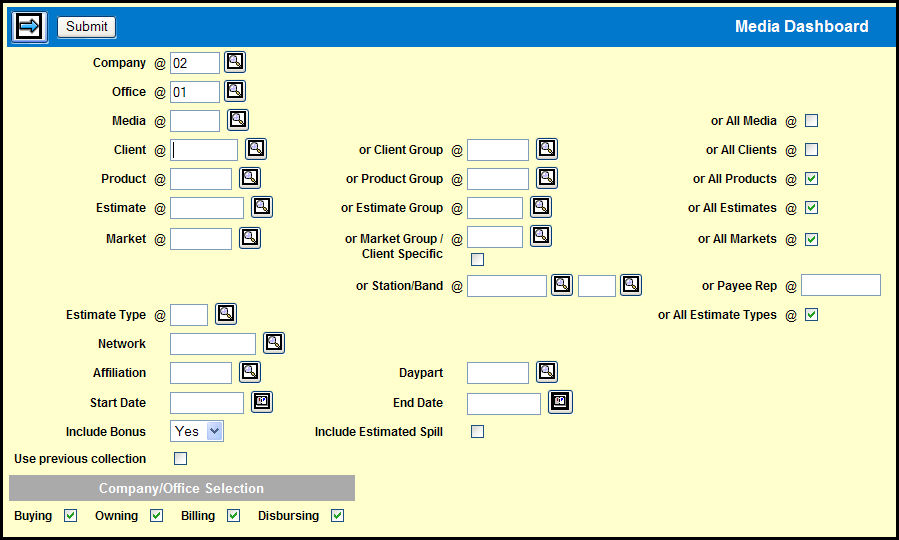
To view summarized information using Media Dashboard, select Inquiries | Media Dashboard.
By default the Company and Office fields will be filled in with the codes from the Login, but you can change them if you have that authority.
Key in the Media or select the All Media check box.
Key in the Client, Client Group, or select the All Clients check box.
Key in the Product, Product Group, or select the All Products check box.
Key in the Estimate, Estimate Group, or select the All Estimates check box.
Key in the Market, Market Group, or select the All Markets check box.
Alternatively, key in a Station and Band Code or a Payee Rep.
Key in an Estimate Type or select the All Estimate Types check box.
If you want to narrow the displayed data to a specific network, key in Network or Affiliation code.
If you want to narrow the displayed data to a specific daypart, key in a Daypart code.
If you want to narrow the displayed data to a specific date range, key in a Start Date and End Date.
Choose an option from the Include Bonus drop down to specify if and how you want to include bonus data.
If you want to collect buy and posted rating information for buys where spill buys have been purchased and include it in your request, select the Include Estimated Spill check box.
If you would like to use a previous collection, select the Use Previous Collection check box.
By default, the Buying, Owning, Billing, and Disbursing check boxes are selected in the Company/Office Selection section. You can clear one or more of these check boxes as needed. (Refer to Company/Office Selection for more information.)
Click the Next icon to display the tabbed interface of the Media Dashboard.
Refer to Understanding The Interface for more information on navigating in Media Dashboard.
To learn more about each gauge and tab in the Media Dashboard, use the following links: