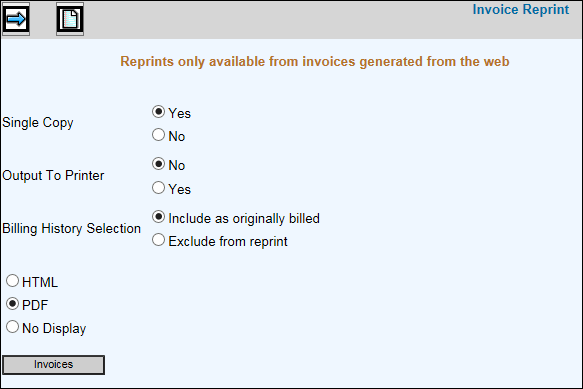
Note: Reprints are only available on invoices generated from the web browser.
Select Miscellaneous Reports|Invoice Reprint.
Accept the default of Yes if you want to print a single copy; otherwise, click No.
If you want reprints sent to a printer, select Yes from the Output To Printer area; otherwise, click No..
From the Billing History Selection area, click Include as Originally Billed to include billing history as it was originally printed on the invoice or click Exclude From Reprint to exclude billing history on the invoice. This function also recognizes all invoices that were suppressed using the Select Invoices to Suppress option in the Admin Folder under Client Billing.
Refer to Printing Selections Window for an explanation of HTML and PDF output.
Click the Invoices button to select invoices you want to reprint. From the Invoice Type drop-down, select All Invoices, Regular Bills, Prebills, or Service Fees.
Click the Next icon to generate the invoice(s). .
Note: All invoices chosen for reprint must be of the same billing type.