Should you need to further adjust the charges on a invoice, it may be removed from the billing cycle also by using this option. Once all changes are made, you may return the invoice to the billing cycle.
Select Billing|Credit Billing|Billing Cycle Maintenance.
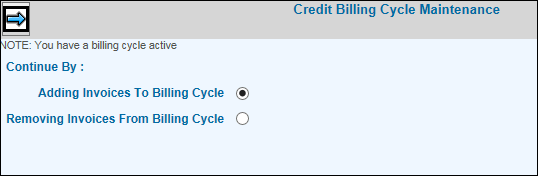
If you have a billing cycle active and it is not yet completed, the Billing Cycle Maintenance Window displays with a Continue By field. Select either Adding Invoices To Billing Cycle or Removing Invoices From Billing Cycle. If you do not have a billing cycle active, skip to Step 6.
Billing Cycle Maintenance Active Window
Click the Next icon  to display a window where you may select invoices.
If you selected to add invoices, select invoices you
want to add. You may limit the list of invoices that display by keying
a Client and clicking <Limit>. When finished selecting, click
the Submit icon  then
click the Next icon to pull invoices into the billing cycle.
then
click the Next icon to pull invoices into the billing cycle.
Billing Cycle Maintenance Add Window
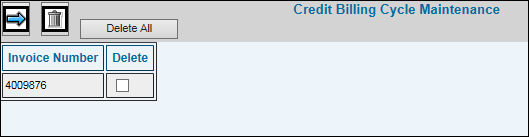
If you selected to delete invoices, select invoices
you want to delete by placing a check mark in the Delete box then
click the Delete icon  . If you want to delete all
invoices, click <Delete All>.
. If you want to delete all
invoices, click <Delete All>.
Billing Cycle Maintenance Delete Window
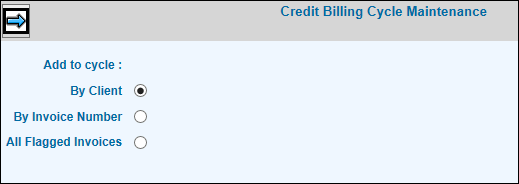
If you do not have a billing cycle active, the Billing Cycle Maintenance Window displays. Select to add invoices to the cycle by Client, Invoice Number, or All Flagged Invoices then click the Next icon.
Note: Remember that the system only pulls invoices that you flagged from your workstation and that were assigned a billing status. If you have not performed these requirements, the invoices are not pulled into the cycle.
Note: Charges may not be billed in any month prior to the posting month. If these charges exist, they will have to be unflagged and billed in the posting MM/YY.
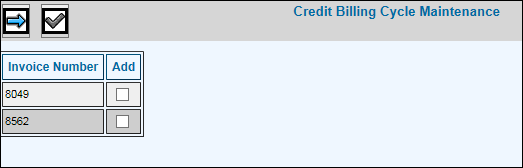
Credit Billing Cycle Maintenance Window
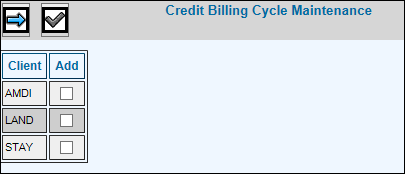
If you selected by Client, a list of clients display. Select clients you want to add then click the Submit icon.
If you selected by Invoice Number, a list of invoices that you flagged in Select Invoices and Change/Add/Remove Flags display. You may limit the list of invoices that display by keying a Client and clicking <Limit>. Select invoices you want to add then click the Submit icon.
If you selected All Flagged Invoices, then a message displays informing you that all "invoices are being pulled into the cycle". When finished, a message displays informing you that "selected items successfully pulled into cycle."
Click the Next icon
to display the Printing Selections Window.
 Type your drop-down text here.