Select Billing|Credit Billing|Change/Add/Remove Flags.
Key the invoice number that contains the charges you
want to credit then click the Next icon  .
.
Select Billing|Credit Billing|Change/Add/Remove Flags.
Key the invoice number that contains the charges you
want to credit then click the Next icon .
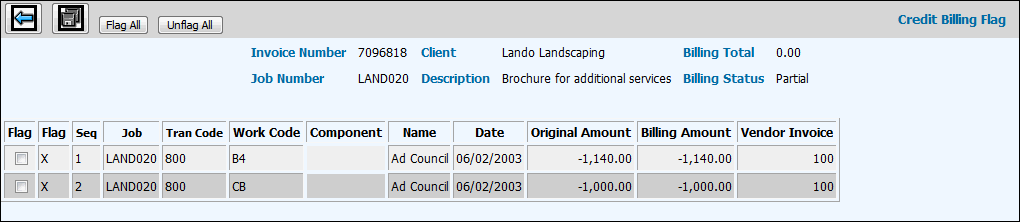
Change/Add/Remove Flags Detail Window
Pertinent information about the invoice display such as the related job number and description as well as the client and current billing status of the job. Also, a list of charges that were billed on the invoice display. Information includes the billing flag, sequence number, tran/work codes, date of charge, and billing amount. Each charge displays with a negative amount. This indicates that the Accounts Receivable account will be credited with this amount and the charge will be set back to inventory.
Click the Flag box beside the charge you want to credit. If you want to flag all charges, click <Flag All>.
Click the Save icon  .
.