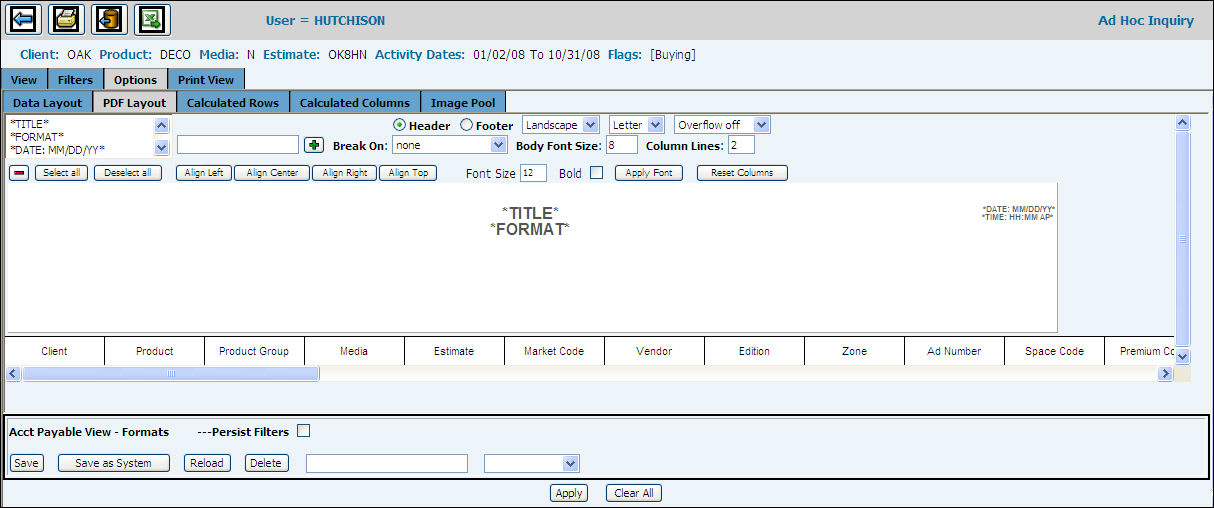
This PDF Layout offers options for you to further customize the appearance of the PDF Report. You may select headers from a list of available columns to appear on the PDF report as well as format the alignment ad font size of the headers and the body of the report.
Select items or an image from the list and click the Add icon. This places the items in the view pane where they can be manipulated.
Click to create a Header or Footer.
Choose whether this report is to be Landscape or Portrait.
Click the dropdown to choose paper size.
You may change the body type size and specify how many lines a long description may use in the body.
To change the font size of a header, type the font size in the header field, and you may click to make it bold. Click the <Apply Font> button.
The Overflow Box for Word Wrap enables you to create additional pages for the columns that do not fit on each page. These additional columns print on the overflow page. You choose the number of columns from the first page to flow to the overflow page.
You may click the edge of a column at the bottom of the window and drag to change the width. To expand the width, you may need to click on the text itself and drag to the right.
If you changed a column header to indicate it to wrap in the Options | Data Layout tab, you may want to narrow a column width.
When you complete all the changes in this view, click <Apply>.