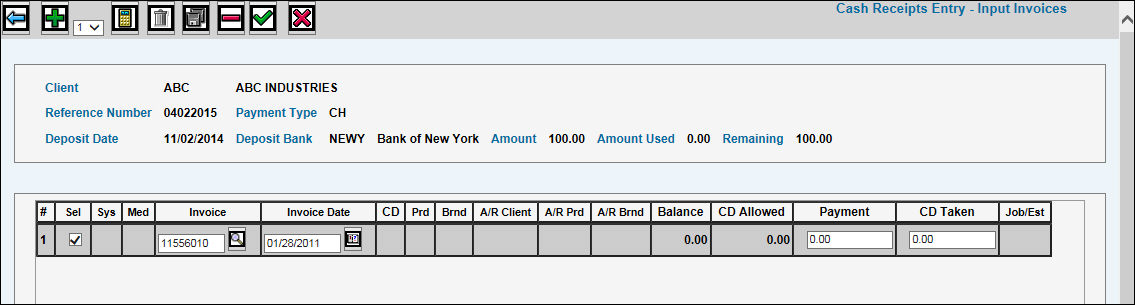
This Action allows you to manually key the Invoice Number and related payment amount for each invoice paid by the check. If there are duplicate invoice numbers, the Invoice Date is used to identify the correct item. Full payment or partial payment of the invoice can be made.
Follow steps for Entering Cash Receipts.
From the Action drop-down list on the Header Window, select Input Invoices.
Click the Next icon to display the Input Invoices Window.
Key the applicable Invoice number (cannot be from a future processing month), select or key the Invoice Date (cannot be a date in the future), Payment Amount, and Cash Discount Taken, if applicable.
When finished, click the Save icon to return to the Header Window.
Click the Save icon again to save your entries and return to the Prompt Window to perform other actions.
Verify information using the List to Verify option.
Post transactions using the Post Cash Receipts option.