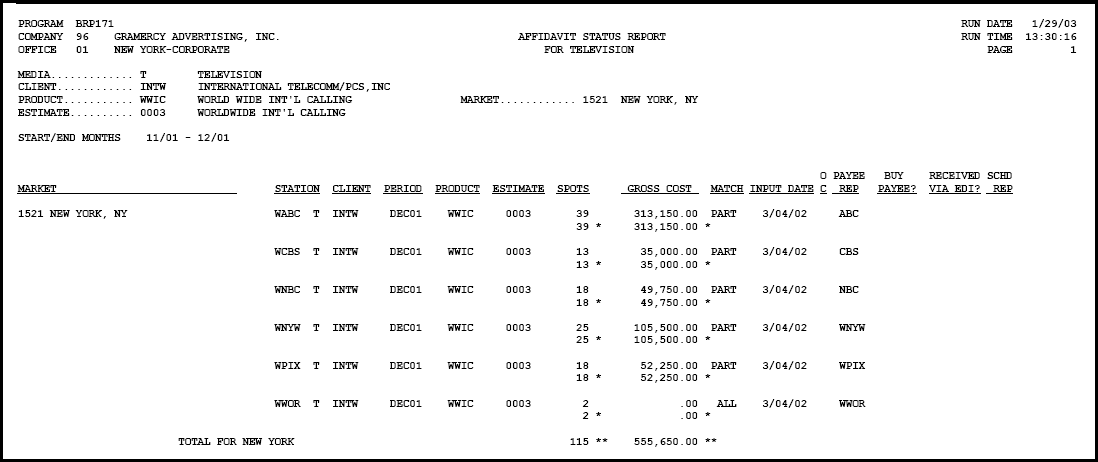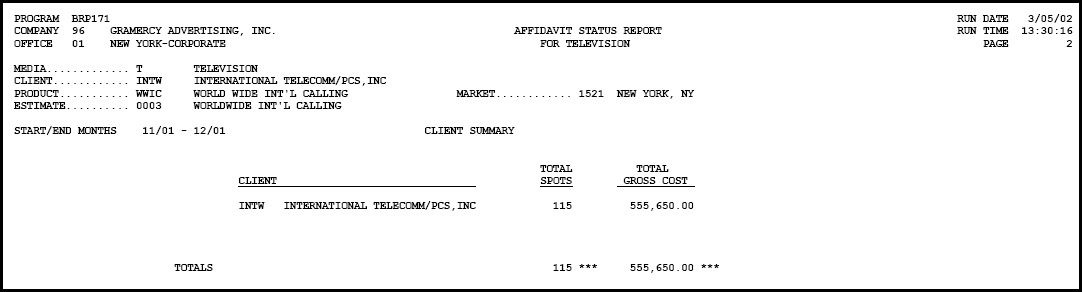
If you are using Dual Costing, amounts are reported at vendor cost.
If you are using Variable Weeks and there are spots that could air in either one month or the next month:
If the earlier of the two months is successfully matched, then this report only shows the spots that were matched. The spots that could air in the following month will be on the status report for that month.
If the earlier month is not successfully matched, the spots will be reported in that month and not the following month.
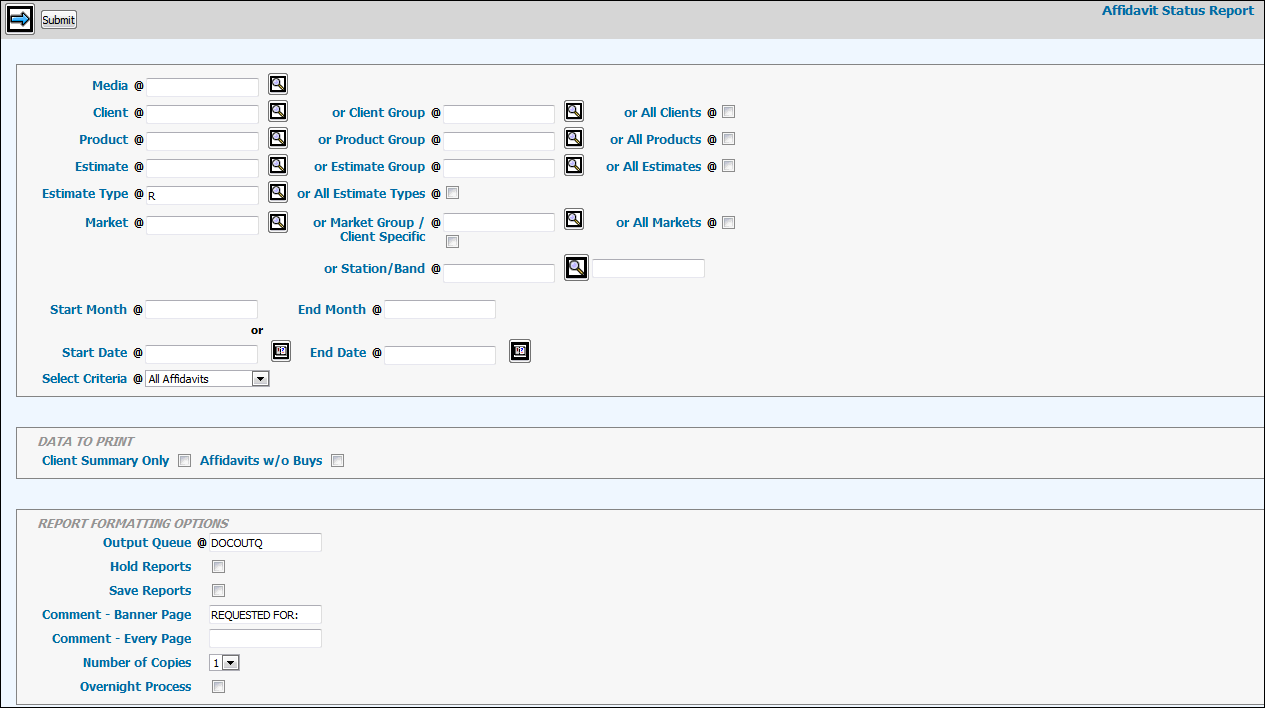
To create this report, select Affidavits | Affidavit Status Report.
Affidavit Status Report Window
Key the Media.
Key a Client, Client Group, or select the All Clients check box.
Key a Product, Product Group, or select the All Products check box.
Key an Estimate, Estimate Group, or select the All Estimates check box.
Key an Estimate Type or select the All Estimate Types check box.
Key a Market, Market Group, or select the All Markets check box. Alternatively, you can key in a Station/Band combination.
Key the Start Month and End Month or the Start Date and End Date if you did not key a specific Estimate.
To specify which affidavits to print on the report, choose one of the options from the Select Criteria drop down list:
All Affidavits, Matched Affidavits, or Discrepant Affidavits (unmatched)
Select one or both of the check boxes in the Data to Print section:
To omit client detail, select the Client Summary Only check box.
To print an additional report showing affidavits with no matching buys, select the Affidavits w/ o Buys check box.
Choose your preferred Report Formatting Options.
Click the Submit button or to export information to a spreadsheet format, click the Next icon to display the Detail Window. Note: If you have trouble exporting information to a spreadsheet format, follow these steps: Go to Tools|Internet Options. Click the Security Tab then click the <Custom Level> button. Scroll to the Downloads setting. Click the Enable File Download radio button then click OK.
Click the Reports icon in the MediaBank A|V toolbar to display the View Spool File window where you can access your report.