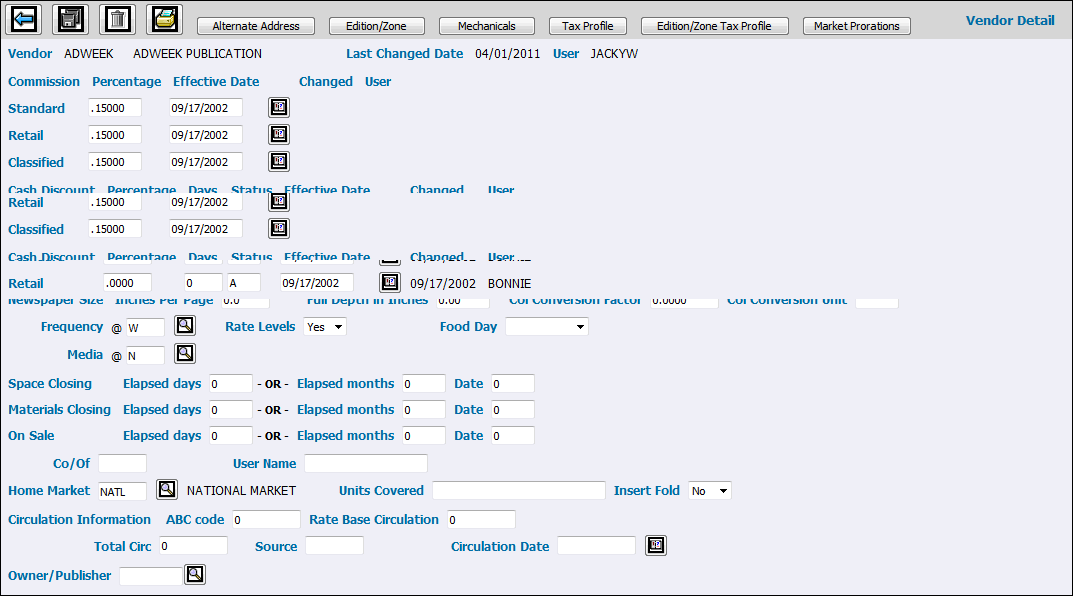
When you click the <Media Vendor> button on the Common Vendor window, the Media Vendor Detail window displays. Use this and subsequent windows to define the vendor for use in applicable media systems. The Last Changed Date and User fields at the top of the window display the last date any field on this window was updated and the User ID of the person who updated it. The other Changed and By User fields refer to the fields to their left.
Use the fields in the Commission section of the screen to define the commission, if any, for each of these three advertising types: Standard, Retail and Classified. For each advertising type (Standard, Retail, Classified)
Key the commission Percentage as a decimal (for example, key .15 for 15%).
In the Effective Date column, key the date that this commission percentage becomes effective.
Use the fields in the Cash Discount section of the window to define cash discounts, if any, that the vendor offers on invoices paid within a certain time period. Cash discounts are always taken on the Net amount. For each advertising type (Standard, Retail, Classified):
Key the Percentage for the cash discount.
Key the number of Days following the date of the vendor invoice when payment is due for earning the cash discount.
Key a code indicating the Status for the cash discount.
A=Active. This discount is active and may be used.
S=Suspended. This discount is suspended but may be changed to active later.
D=Deleted. This discount is deleted and may not be used.
Key the Effective Date that the cash discount goes into effect.
Use the Newspaper Size fields to automate calculations in the Buy Module and to allow contract analysis in Print. Key the total column Inches per Page and the Full Depth in Inches. To specify how to convert the vendor's column width to inches, key a Col Conversion Factor and Col Conversion Unit. The unit must be a code defined in Unit Code Definition in Print. These will appear on the Mech Specs report that is currently being developed in the Print application.
Indicate how often the vendor publishes by keying a Frequency code defined in PRINT Frequencies Definition.
In the Rate Levels field, indicate whether the vendor offers a sliding scale of rates based on the level of activity. If the Client Profile requires a contract, a setting of No here overrides that setting and, therefore, any contracts set up for this vendor are not included when contracts are requested to print.
To allow buyers to retrieve the vendor's Food Day in the Buy Module, select the day from the drop down list.
Key the media code for this vendor.
For each of the three date-type categories (Space Closing, Materials Closing, and On Sale) indicate how the system should calculate the date based on the insertion date. Key either the Elapsed Days before or after or key the Elapsed Months before or after and a Date in that month. When keying days before, key a minus sign in front of the number.
Co/Of. Optional. To record the company/office that requested changes to this profile, key the company and office codes.
User Name. Optional. To record the user that requested changes to this profile, key the user's name.
The Home Market field displays the market assigned in Market Definition in PRINT, if any, but you may override that assignment by keying a different market.
The Circulation Information fields are for informational purposes only.
ABC Code. The Audit Bureau of Circulation code.
Rate Base Circ. The circulation on which advertising rates are based.
Total Circ. The total circulation for this vendor.
Source. The source that defines the circulation.
Circ. Date. The effective date of the circulation information.
To associate media vendors with a specified owner/publisher, key or select an Owner/Publisher code. An owner/publisher can be associated with multiple media vendors. Afterwards, when running the Rep/Vendor Association Export in Media Accounting, you will be able to see all vendor/reps that are associated with the specified owner/publisher. Before using this field, vendor representatives must be set up in the Admin|Vendor Representative Definition option in Print|OOH|Interactive.
Click Save
 to save changes and/or click the button for
one of the other options:
to save changes and/or click the button for
one of the other options:
To specify the parameters for an alternate address for the vendor, click <Alternate Address>.
To specify editions and/or zones for this vendor, click <Edition/Zone>.
To assign the vendor's actual mechanicals to defined Space Description Codes for printing on insertion orders, click <Mechanicals>.
To assign a portion of the vendor's circulation to markets other than the Home Market defined on the Print Vendor Detail window, click <Market Prorations>.
To delete a Media Vendor, click the Delete icon. A media vendor cannot be deleted if Contract or Insertion Order activity exists.