Note: Purchase Order Approval must be turned on to collect unapproved purchase order information.
Select Purchasing|Reports|Purchase Order Approval Status Report.
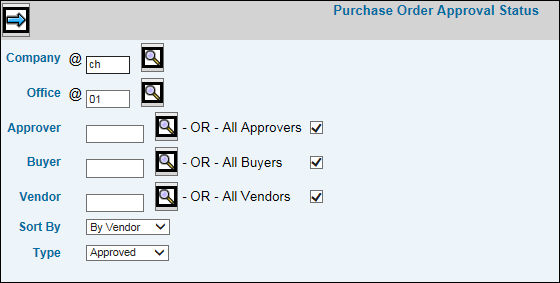
Purchase Order Approval Status Prompt
Key the Company/Office for which you want to print the report.
To run the report for a specified Approver, Buyer, and/or Vendor, key or select the applicable codes. If you want to run the report for All Approvers, All Buyers, and/or All Vendors, click in the applicable box.
From the Sort By drop-down list, select to sort by Vendor, Approver, or Buyer.
The Type feature allows you to collect information by approval status. Selections include: Approved, Unapproved, and Both (includes both approved and unapproved purchase orders). The Status column on the report includes: Approved, Rejected, Unapproved, and Not Submitted (Not Submitted lists purchase orders where no approvers have been assigned).
Click the Next icon  to launch
Adobe® Acrobat® and display the report in a PDF file.
to launch
Adobe® Acrobat® and display the report in a PDF file.