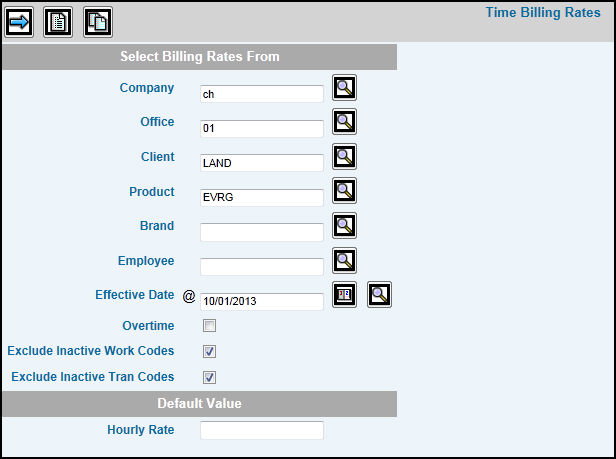
Key the Company/Office/Client/Division/Product/Employee for which your are setting up billing rates. If an office is keyed, the office used to get the billing rates must be the Job office. (See Production Billing Rates Hierarchy to see the order in which Production searches settings for rates used when billing time.)
If you want these billing rates to become effective on a specific date, key the appropriate date in this field. If you are submitting monthly time sheets, this date must be the day before the beginning of the month.
If this employee is allowed overtime rates, click in the Overtime box to show a checkmark.
Click in the Exclude Inactive Workcodes box to exclude inactive workcodes from the Detail Window. If you want inactive workcodes to be included on the Detail Window, leave the Exclude Inactive Workcodes box blank. This view may be helpful if you want to see the rates previously entered on workcodes that have been inactivated.
Click in the Exclude Inactive Tran Code box to exclude inactive transaction codes from the Detail Window. If you want inactive transaction codes to be included on the Detail Window, leave the Exclude Inactive Tran Code box blank. This view may be helpful if you want to see the rates previously entered on transaction codes that have been inactivated.
Key an Hourly Rate in the Default Value area if you want to place this value in all fields under the Hourly Rate column on the Entry Window. This allows you to key the rate only once per company, employee, client, division, product, effective date, and overtime. If rates should be different for some time codes, then you will have to key the rate in each Hourly Rate field that you want to change. The default rate helps reduce Data Base maintenance and the amount of paper required when printing a billing rate list.
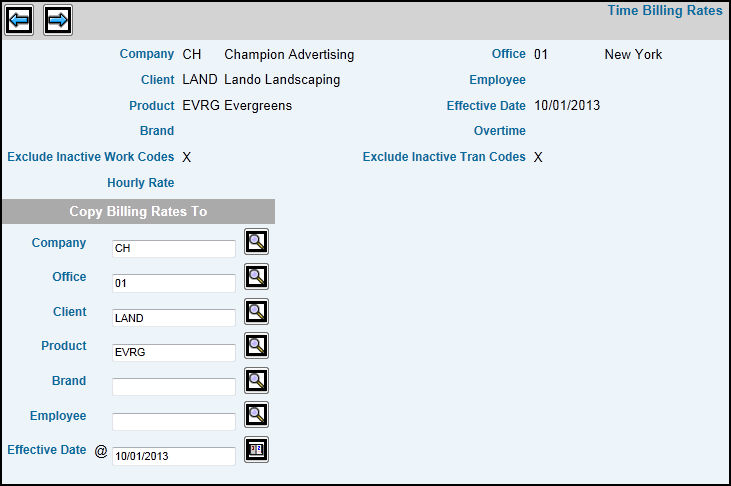
To copy any combination of levels from one time billing rates hierarchy to a new time billing rates hierarchy having the same combination of levels, click the Copy icon; otherwise, skip to Step 10. .
Codes entered on the Prompt default into “Copy Billing Rates To” fields. Change codes to which you want to copy information in applicable fields. Remember that the combination of levels in the “Copy Billing Rates To” fields must be the same combination of levels entered on the Prompt.
Click the Next icon  to display
the Time Billing Rates Entry Window.
to display
the Time Billing Rates Entry Window.
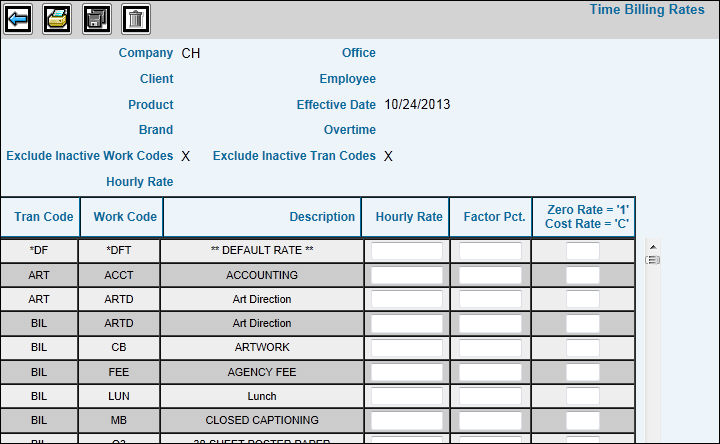
Time Billing Rates Entry Window
For Default Rates, key the rate in the Hourly Rate or Factor Pct field in the DEFAULT RATE line for the system to apply this rate to all listed Transaction/Work Codes. If there are a few Transaction/Work Codes that require rates different from the default, change the rate in just those fields that need to be different. If a default rate does not apply, then leave fields on the DEFAULTS RATE line blank.
Key the Hourly Rate you want used or if using a percentage instead of an hourly rate, key a percent in the Factor Pct field.
Key 1 in the Zero Rate/Cost Rate field to use a zero billing rate or key C to use the cost rate. If the cost rate is used, leave the Hourly Rate and Factor Percent fields blank. When you key a C, the bill rate will be equal to the cost rate.
To print Time Billing Rates, click
the Print icon 
When finished, click the Save icon
 .
.