After downloading information to Excel, you can then make additional notations on the spreadsheet pertaining to deposits in transit and other reconciling items to balance back to the bank statement.
Note: Any period may be selected, but for the first month that this option is used, you must call Client Services who will enter the beginning balance for each bank. From that point forward, the system will maintain each bank’s balance forward when you run the report for a month as a final Live run.
Select General Ledger|nquiries|Bank Reconciliation View/Export
Bank Reconciliation View/Export
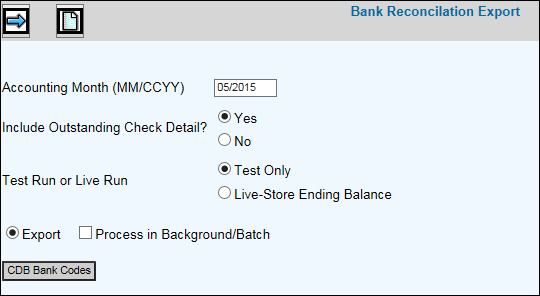
The Accounting Month/Year defaults from the Sign-on Accounting Month/Year but it may be changed.
In the Include Outstanding Check Detail area, click either Yes or No to either include/exclude outstanding check detail.
From the Test Run Live Run area, click Test Run to collect information but not store the ending balance or click Live to collect information and store the ending balance to maintain each bank's balance forward.
Export is selected by default.
To continue to work in another option or even log off while the information is being processed, click in the "Process in Background/Batch checkbox. This feature works with the Export function so make sure you click both the Export radio button as well as the "Process in Background/Batch" checkbox to process requested information in the background.
The CDB Bank Code selection button allows you to collect information for only selected bank codes. If you do not select Bank Codes, the system automatically collects information for all banks for only the companies/offices to which you have authority.
Click the Next icon to display all of the possible columns of information. Select only the information you wish to include on the report then click the Next icon again to display the Processing Window.
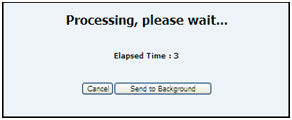
You may click <Cancel> to cancel your request or if the report is large, you can take advantage of the <Send to Background> function which processes the request in the background so you can continue to work in other options. This function is also available on the Prompt as described above.
As always, if you process in the background and your report is under 2MB in size, you will receive your report as an attachment in an email after processing is completed. If your report is over 2MB in size, your email will contain a link that will open a download window where you can save the file to a spreadsheet format.
If you do not click <Cancel> or <Process in Background>, your report is output to the browser where you will see Filter, Page Number, and Max Rows functions. Click the Next Page (down) arrow to display the next page of information on the report. Click the Previous (up) arrow to return to the previous page of information. Key a Max Row to limit the amount of rows that display on a page to the specified number. To filter information, key a valid filter in any of the blank fields located below the applicable column heading and press <Enter>. Only values that match the specified filters are displayed. When filters are applied, page numbers are no longer displayed; however, you can continue to use the Next Page feature to advance to the next page of filtered information on the report. To remove all filters, click <Clear Filters> or you may remove filters separately by highlighting a filter and clicking <Delete>. Note: Total rows are not recalculated when filtering.
Click <Export to Spreadsheet> to export your report to a spreadsheet format or click the Print icon to generate a PDF of your report. If filters are used, only the information that is filtered displays on the spreadsheet or PDF.
Note: PDF processing limits the number of rows that display on the PDF to 3,000. If you receive the message “3000 row limit reached”, use the new filter function to limit the amount of information that is collected.