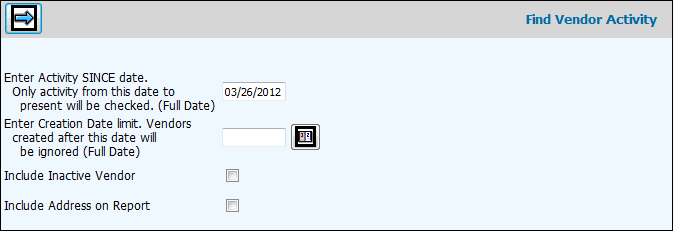
Select Admin|Find Vendor Activity.
Key a full date in the "Enter Activity SINCE date" field. Only activity from this date to present will be checked.
Key a full date in the "Enter Creation Date limit" field. Vendors created after this date will be ignored. This allows you to enter a more recent date so that newly created vendors can be excluded from the collection, as they may not have had time to acquire activity.
Click in the Include Inactive Vendors checkbox to include active as well as inactive vendors.
Click in the Include Address on Report to help you distinguish between vendors having similar names.
Click the Next icon  to display the Printing
Selections Window.
to display the Printing
Selections Window.
When the system checks for activity in A/P, G/L and A/R, the following information is listed on the report:
If there is activity found in A/P, then the last entry and voucher number is shown along with the last check date and check number.
If there is activity found in G/L, the last entry date is shown along with the G/L Document Number.
If there is activity in A/R, the last invoice date and invoice number is shown.
If there is no activity, the vendor is shown with the comment that there was no activity at all found.