Note: If using this option in Media Accounting, information is collected from all three buying systems, (Print, Interactive, and Out-of-Home). Otherwise, information is collected for only the buying system in which you are working.
To begin on the Prompt Window:
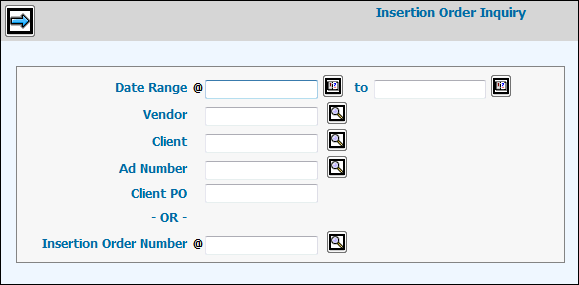
Insertion Order Inquiry Window
The Date Range is the only required code unless you key an Insertion Order Number. If you key an Insertion Order Number then the Date Range is not required.
When keying a Date Range, you may limit the amount of insertion orders that display by Vendor, Client, Ad Number, and Client PO. If searching for a specified Insertion Order Number then the only code you need to key is the Vendor code.
Click the Next icon.
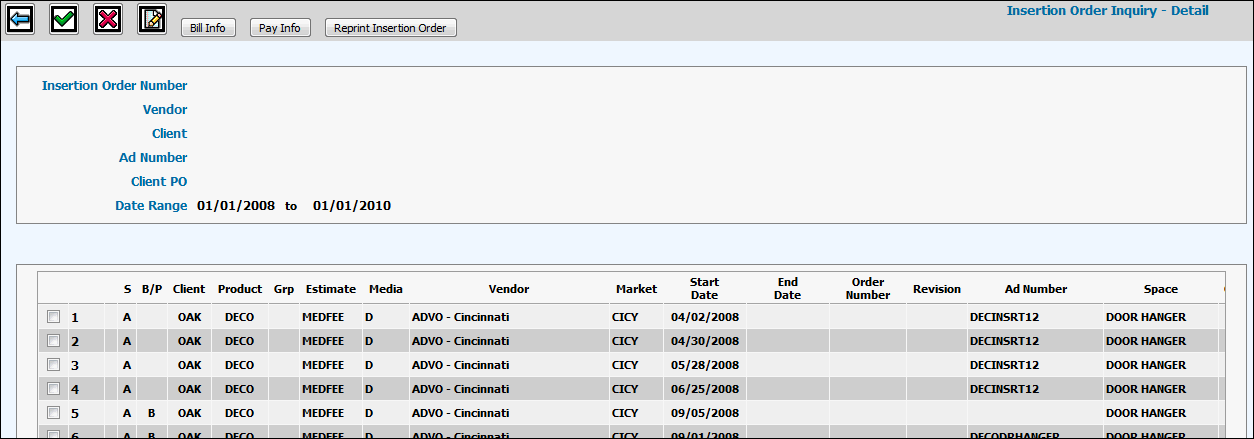
Insertion Order Inquiry Detail Window
If you see an asterisk * in the B/P column, you may view details for the billing and paying of this insertion order.
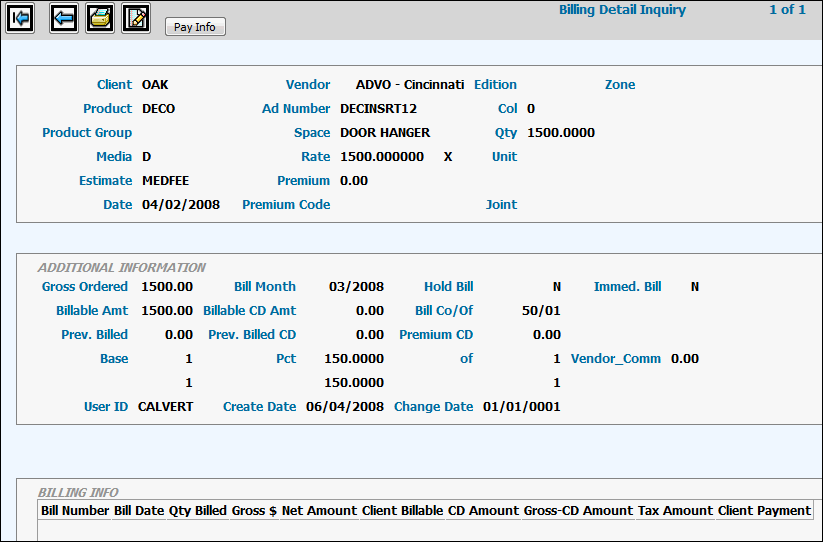
Click <Bill Info> to view billing details including Bill Number, Bill Date, Quantity Billed, Gross $, Net Amount, Client Billable, CD Amount, Gross-CD Amount, Tax Amount, and Client Payment (Yes or No). If there is a client payment, “YES” will appear in the Client Payment Column. Click on “YES” to display the Client Payment Detail popup showing the Check Date, Check Number, and the Check Amount. Click <Close> to close the popup.
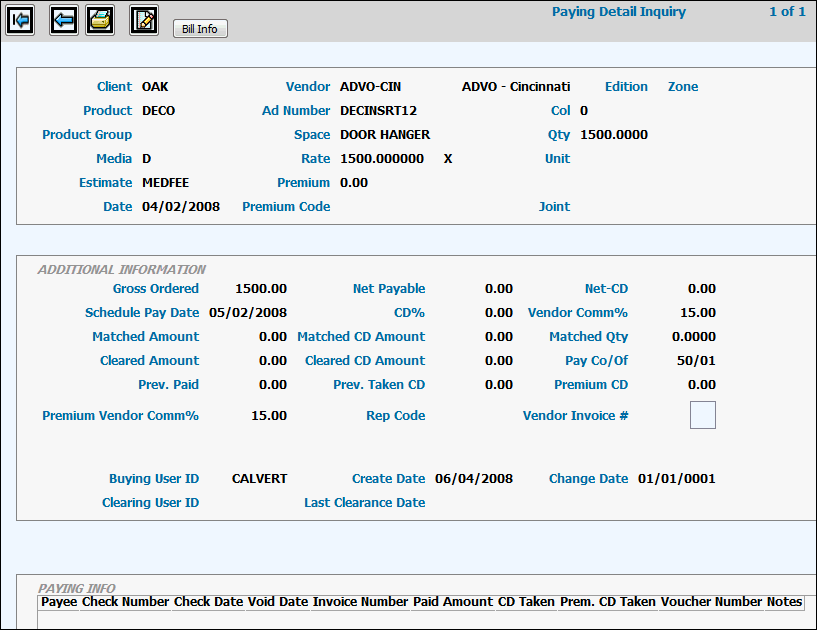
Click <Pay Info> button on either the Detail window or the Billing Detail Inquiry window to view for this insertion order Payee, Check Number, Check Number, Void Date, Invoice Number, Paid Amount, CD Taken, Prem. CD Taken, Voucher Number, and Notes on the payment.
Click <Reprint Insertion Order> on the Insertion Order Inquiry Detail window to reprint a copy of this insertion order without having to return to the Buy Module and resetting the Order flags. The reprint function reprints insertion orders and contracts based on criteria used when buys were last trafficked. After the release of October 20, 2012, you will no longer see the Inquiry Data to Print Selections window when using the reprint function. Instead, your insertion orders or contracts will be automatically generated from criteria used when buys were trafficked. If reprinting insertion orders or contracts that were trafficked prior to this release, you will receive the following error message “Reprint Details Not Available From This Option. Please Traffic Using Order Flag= Latest Revision”. Please traffic these buys as directed to collect details required for reprinting.
Note: Neither positioning comments nor comments entered on the Estimate or Buy (including location description comments) print on this version of the Insertion Order.