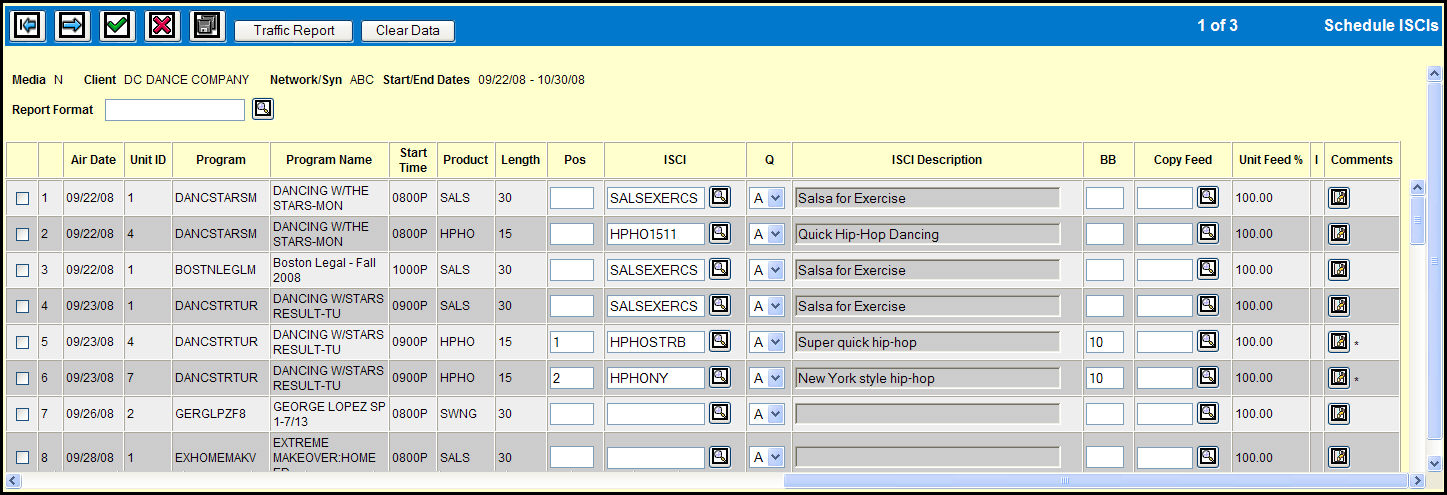
On the Detail Screen, you may assign or change the ISCI code and qualifier for a unit with a single product allocated by keying the codes directly in the ISCI and Q fields for that unit.
Key or Lookup a Report Format.
If you are scheduling more than one ISCI to the same program and same time period, you may key a position number in the Pos field to indicate which should be run first and second, etc.
Key or Lookup the ISCI to assign to each buying unit. The Lookup windows displays only those ISCIs that are valid for the Client, Product, and Length.
Accept or change ISCI Qualifier Default setting ( A - Actual or P - Preliminary) in the Q drop down list.
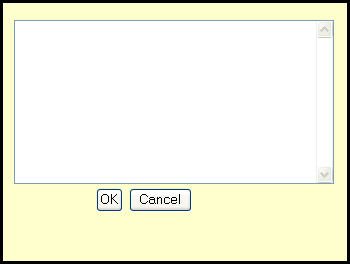
Add a Billboard to a unit by typing a length in the BB filed and then click the adjacent Comments icon to display the ISCI Comments dialog box in which you may enter a comment.
Key or Lookup the Copy Feed code.
To delete a row of data, select the check box adjacent to the row, and click the Clear Data button.
Click the Save icon to update the buy with this ISCI information.
Click the Traffic Report button to send this schedule to the Traffic Report option.