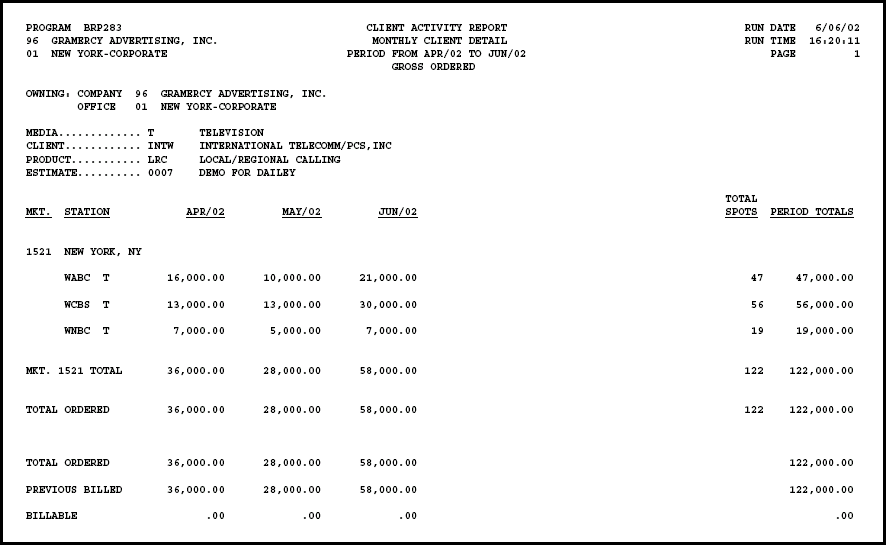
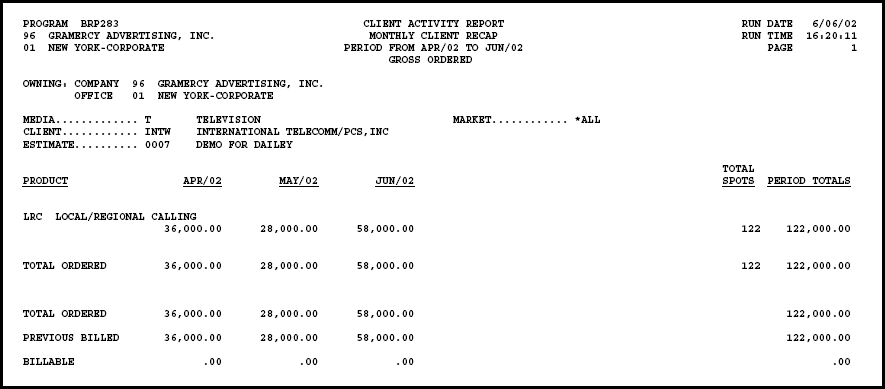
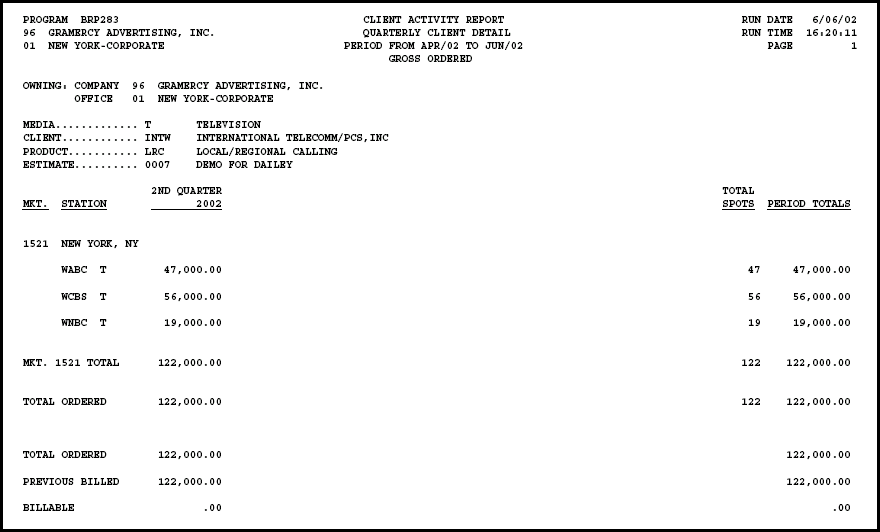
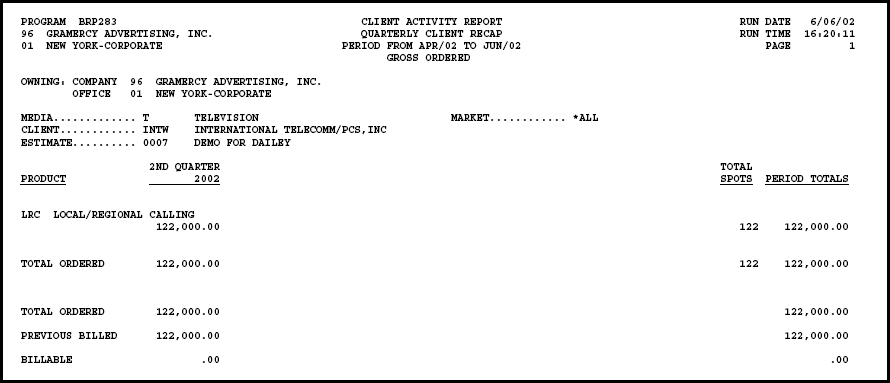
If you are using Dual Costing, this report always uses the client cost.
To view and print the purchased activity, select Media Accounting | Broadcast Media Accounting | Client Activity Report-Billing.
Client Activity Report - Billing Window
If you want to limit the report, key or Lookup an Owning Company/Office or leave the fields blank to include all activity billed by the sign-on company/office.
If you signed on using a corporate account, you'll see the Include All Co/Off check box.
Key or Lookup the Media
Key or Lookup a Client, Client Group, or select the All Clients check box.
Key or Lookup a Product, Product Group, or select the All Products check box.
Key or Lookup an Estimate, Estimate Group, or select the All Estimates check box.
If you choose an Estimate Group or All Estimates, you may select the Combine Estimates check box to combine estimates for the same client and product. The report will not be grouped or totaled by estimate and the estimated group or *ALL displays as the estimate in the header.
Key or Lookup a Market, Market Group, or select the All Markets check box.
Select a specific estimate type to be included on the report or clear out Estimate type field and select the All Estimate Types check box to include all estimate types.
If you did not key a specific estimate, key the starting and ending dates for the data to be included in the Start/End Months fields.
If you want to include a comment at the top of the first page for each estimate, key the appropriate code in the Standard Comment field in the Data to Print section.
In the Formatting section, use the controls to choose how you want the report to be configured and what you want to include in the report.
Select an item from the Report at drop down to indicate how you want to show dollars.
Select an item from the Format drop down to indicate how you want the data to be formatted.
In the Report Selections section, select the check box by each report format that you want to use.
Use the One Market/Page and Sort by Market Code check boxes to indicate how you want the data to be laid out in the report.
Complete the necessary fields in the Report Formatting Options section.
Click the Submit button.
Click the Reports icon in the MediaBank A|V toolbar to display the View Spool File window where you can access your report.